Puzzle
Simplify financial management with Puzzle. An AI-powered accounting tools that automate bookkeeping, reporting, and real-time insights.
VoiceOS turns spoken requests into action across your Mac and Windows apps, helping you dictate, manage tasks, and work faster with a voice assistant.
 VoiceOS
Justification: VoiceOS fits best under Assistive AI Tools because it uses voice to help people dictate, manage tasks, and take actions across desktop apps. Its core value is hands-free productivity, not simply transcription or conversation. VoiceOS is described as a voice assistant for Mac and Windows that connects spoken requests with actions across apps.
Typing is still the default way most people interact with computers, but it is not always the fastest or most comfortable. For people who spend much of the day answering messages, writing notes, searching for information, or switching between apps, voice can offer a more natural way to get work done. VoiceOS is designed around that idea. It positions itself as a voice operating system for Mac and Windows, aiming to turn spoken requests into actions rather than limiting voice input to transcription. The company’s website presents it as a desktop AI assistant with a seven-day free trial.
This review examines what VoiceOS does, how to use it, who might benefit from it, and what to consider before adopting it. It also covers pricing as far as the publicly available information allows. VoiceOS’s homepage confirms a seven-day trial, but the search result available for this review does not show a specific subscription price or a detailed breakdown of paid plans. Check the current plan and renewal terms on the product’s site before subscribing.
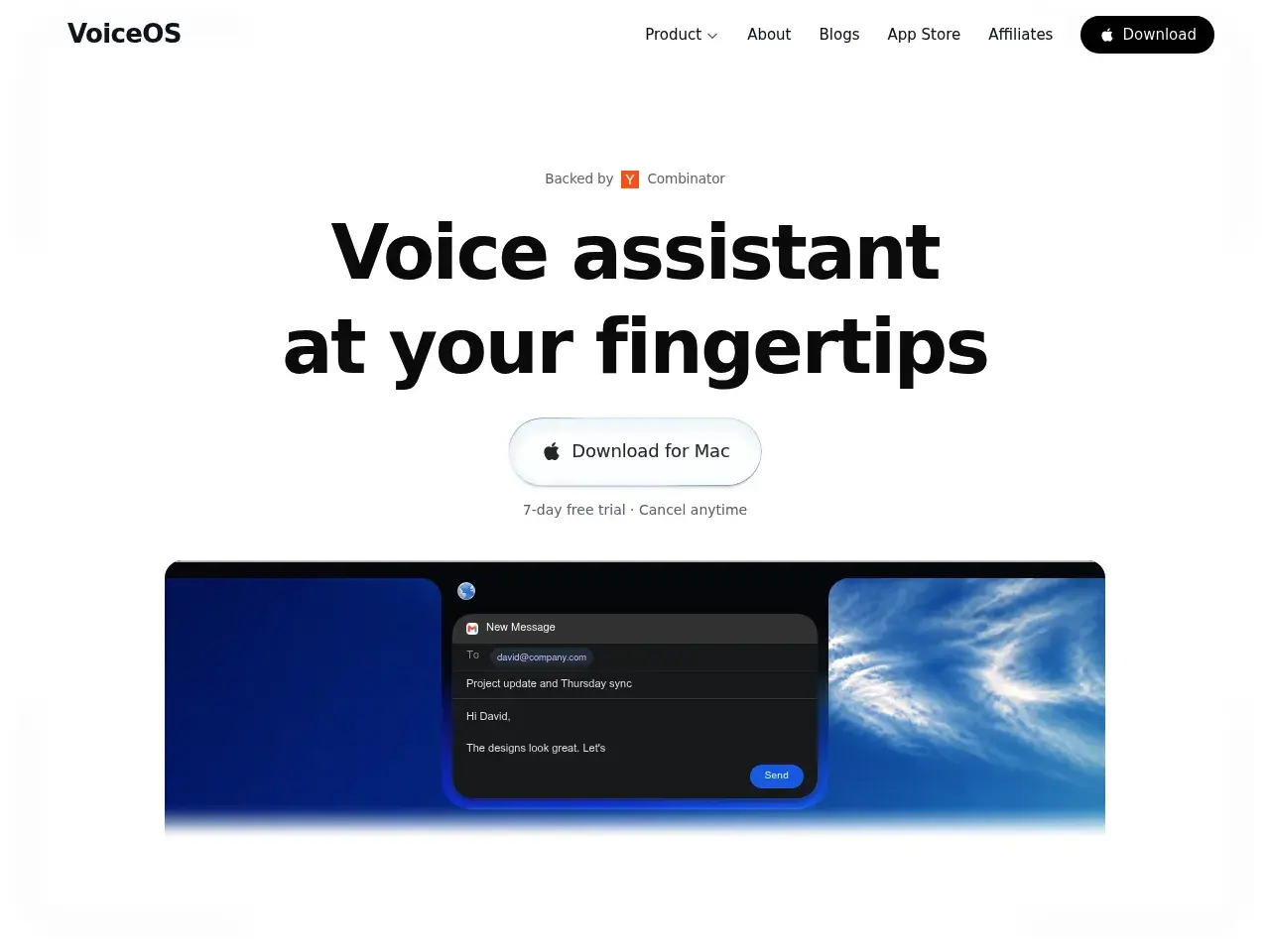
VoiceOS is an AI-powered voice assistant for desktop computers. Its central idea is “voice-to-action”: a user speaks a request, and the assistant helps carry it out in the context of the app or task at hand. That makes it different from a basic dictation tool, which primarily converts speech into written text.
The product is intended to work across everyday desktop workflows. Examples described for VoiceOS include composing and replying to messages, scheduling meetings, creating notes, searching for files, drafting documents, and handling work in tools such as Gmail, Slack, Google Calendar, Notion, Linear, and Google Docs. The exact actions available can depend on the integrations, operating system, permissions, and product version.
VoiceOS also emphasises the use of visible on-screen context. Instead of explaining an entire document or app from scratch, a user can point to or focus on the relevant context and give a voice instruction. For example, someone reviewing an email could ask for help drafting a reply, while a developer looking at a code editor could ask for an explanation or a change. VoiceOS describes an agent mode for handling more involved, multi-step tasks.
The service is presented for both Mac and Windows. Its homepage also promotes a seven-day free trial, though the available information does not specify the paid price or whether all features are included during the trial.
VoiceOS can turn spoken words into text for use in desktop workflows. Beyond transcription, it is presented as capable of cleaning up spoken input. For example, removing filler words, correcting grammar, and formatting text. This can help users speak naturally without having to dictate punctuation or edit every sentence afterwards.
That can be useful for drafting emails, notes, messages, and longer documents. People who think more quickly than they type may also find it easier to capture ideas before they lose their train of thought.
A major part of VoiceOS’s pitch is that it can help users interact with multiple applications through voice. The examples associated with the product include sending or replying to email, responding in Slack, scheduling calendar events, adding notes, searching for files, and drafting documents.
This is the distinction between dictation and voice-to-action. Dictation enters text into a field; a voice assistant aims to understand what the user wants done and help complete the task. Users should still check important changes, especially messages, calendar bookings, and work tickets, before they are finalised.
VoiceOS promotes using the cursor or visible screen as context for a request. In principle, this can reduce the need to describe which item, message, or document the user means. A person can focus on the relevant content and then give an instruction about it.
Contextual commands can make voice interaction feel more direct, but the quality of results may depend on how clearly the relevant item is selected and how the app handles automation. Users should be precise when a command could affect important or shared work.
The product describes an agent mode for requests that involve more than one action. Rather than asking the user to dictate a separate command for every step, an agent can help carry out a sequence of related tasks.
For example, a user might want to review a message, draft a response, and prepare a follow-up reminder. The practical value is convenience, but multi-step automation also makes review important: users should confirm the content, recipients, and final actions before anything consequential is sent or scheduled.
VoiceOS can support small administrative tasks such as capturing a reminder or noting a follow-up. This can be especially useful when a user is already focused on another task and wants to record an action without opening a separate app and typing it out.
The product’s previously reviewed homepage materials state that audio is not stored on VoiceOS servers, transcripts are saved locally, and dictation is not used to train AI models. It also describes optional anonymous diagnostics. Since privacy policies and processing details can change, users handling sensitive information should review the current privacy documentation and settings before use.
A typical setup and workflow can be approached in a few steps:
Starting with low-risk tasks makes it easier to understand how VoiceOS interprets commands before relying on it for important work.
VoiceOS advertises a seven-day free trial on its homepage. The available homepage result does not provide a verifiable monthly or annual price, a plan comparison, or details about feature limits. For that reason, this review does not quote a paid price.
Before subscribing, check the current pricing page or in-app plan screen for the subscription amount, billing frequency, renewal terms, trial conversion date, and cancellation instructions. Also confirm whether the trial requires payment details and whether features such as agent mode or specific integrations are included in the plan you are considering.
Professionals who manage a high volume of email or chat can use voice to draft, revise, or respond to messages. Speaking a first draft may be faster than composing from scratch, while an AI assistant can help format or refine it. Because tone and accuracy matter, review the draft before sending.
Users can use voice to prepare calendar entries, capture follow-ups, or set reminders. This can reduce the friction of switching to a calendar app, particularly after a call or while working in another window. Always verify the date, time zone, attendees, and meeting details.
Writers, founders, students, and researchers often need to capture thoughts quickly. VoiceOS can support spoken notes or drafts in note-taking and document apps. This approach is useful for brainstorming, meeting notes, and recording an idea while it is fresh.
Developers may find voice useful for describing code, asking questions about visible content, or drafting issue notes. Voice can be particularly helpful when a developer is reviewing a file and wants to ask about a specific section. Generated code or edits still need to be checked, tested, and reviewed like any other AI-assisted change.
People who work across project management, messaging, and document tools may use VoiceOS to reduce repetitive navigation. Examples include capturing a task, preparing a ticket, or drafting a project update. Teams should establish review practices to ensure that automated actions do not create duplicate or inaccurate records.
Voice interaction can benefit people who find extensive typing difficult, tiring, or inconvenient. It may also help anyone whose hands are occupied or who prefers speaking to typing. The experience will depend on microphone quality, environment, speech recognition accuracy, language support, and the user’s comfort with voice workflows.
VoiceOS sits at the intersection of dictation, desktop assistance, and workflow automation. These tools are alternatives in some workflows, though their features and availability differ.
The right alternative depends on whether the priority is accurate dictation, hands-free accessibility, conversational AI, or executing tasks across apps. Users should compare current platform support, integrations, privacy terms, and pricing rather than assuming the tools are interchangeable.
VoiceOS is a strong fit for evaluating whether you want voice to do more than type words into a text field. Its focus on app-aware commands, dictation, and multi-step productivity tasks makes it relevant to people who spend much of the day moving between communication, calendar, notes, and work tools. It may be especially appealing to founders, creators, developers, operations teams, and users who prefer hands-free interaction.
The main considerations are practical: confirm that the integrations you rely on work as expected, review privacy and permission settings, and verify the paid pricing before the seven-day trial ends. Treat agent actions as drafts or proposals until you have checked them. If those conditions fit your workflow, VoiceOS is a promising Assistive AI Tool for making desktop work more voice-driven.
The content provided on this site, AISoftRadar—specifically VoiceOS—is sourced from the internet. We do not guarantee the accuracy or completeness of any external links, nor do we exercise actual control over the destinations to which these links point. At the time of indexing (2026-10-29 7:49 PM), the content on the linked pages was compliant and lawful. Should any content on these pages subsequently become non-compliant or illegal, please contact the site administrator to request its removal. AISoftRadar assumes no liability in this regard.