
Sudowrite
Write your novel faster with the best AI tool for fiction. Start for free today and see why The New Yorker calls it a salvation for writers and storytellers.
LOADING
Supercut records polished screen videos on Mac, Windows, and Chrome, then lets AI agents search recordings, transcripts, frames, comments, and reactions for teams!
 Supercut AI
Justification: Supercut records screen activity and makes recordings, transcripts, frames, comments, and reactions searchable by AI agents through its MCP server. It helps people give AI assistants visual and workflow context, while also serving as a screen recorder for sharing business videos.
AI agents can work with text, files, and connected applications, but they often lack context about what a person actually saw or did on screen. A written explanation may omit the interface state, the sequence of steps, or the visual details that would make a question easier to answer. Supercut aims to bridge that gap: it is a screen recorder whose recordings can be searched and read by AI agents through its own Model Context Protocol (MCP) server.
That combination gives Supercut two related roles. It works as a screen recorder for people who want to capture and share polished videos, and as a source of searchable visual context for AI tools. The official site says its native recorder is available for Mac and Windows, and it also offers a Chrome extension. The native apps support camera recording and resolutions up to 4K; the Chrome extension records the screen and microphone at up to 1080p, according to Supercut’s bug-report page.
This review covers Supercut’s main functions, how to start using it, pricing information available from its official pages, practical use cases, benefits and limitations, and competing tools. It also addresses setup searches such as Supercut AI agents search, Supercut screen recorder for AI agents, and connecting Supercut to developer-focused AI clients.
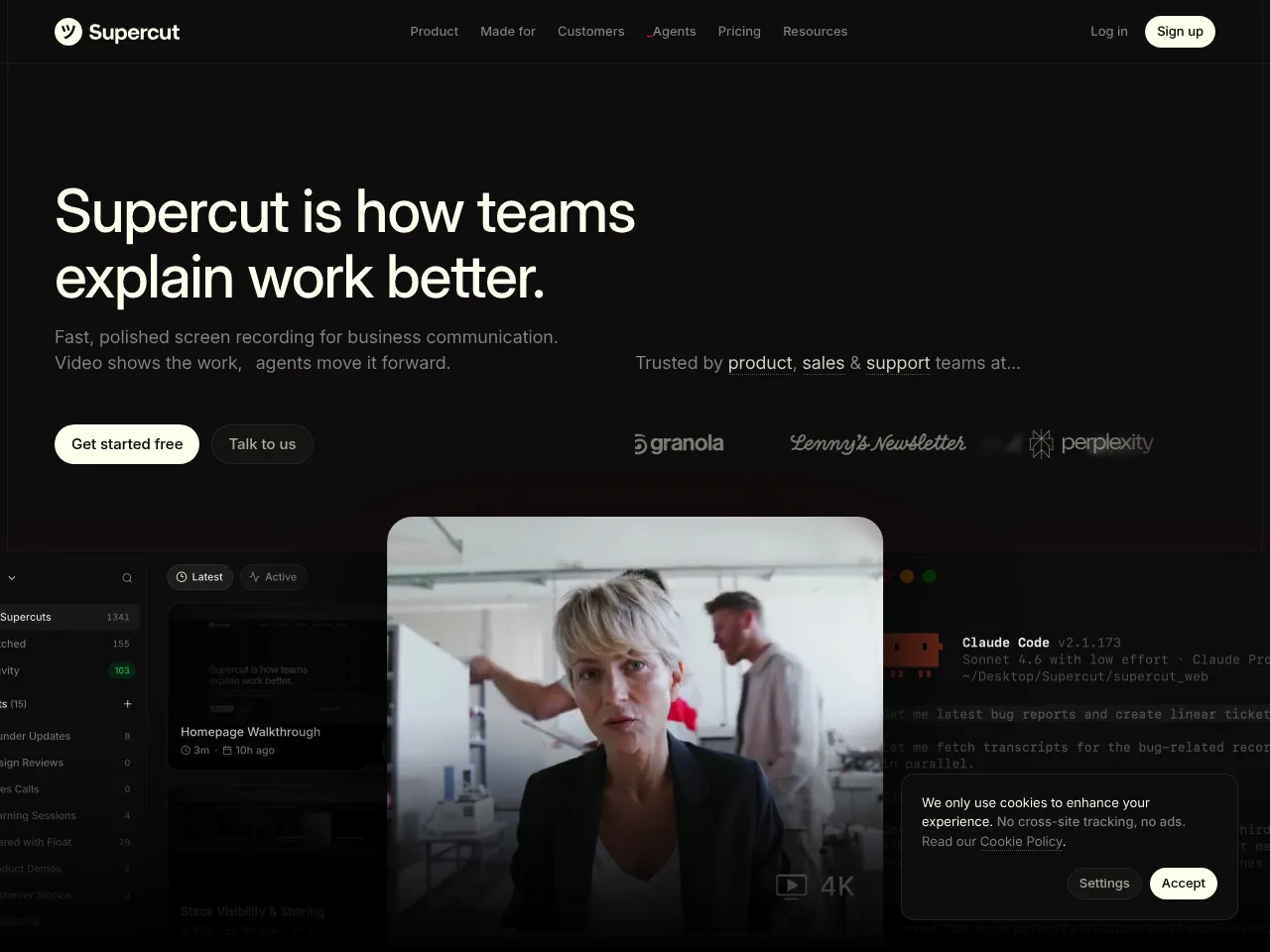
Supercut is a screen recording and sharing product built for business communication, with an additional focus on making screen recordings useful to AI agents. Its native recorder captures screen activity, and the product also offers a browser extension. The AI-agent side is powered by an MCP server that lets compatible clients search recordings and access information such as transcripts, frames, comments, and reactions.
MCP, or Model Context Protocol, is a way for compatible AI applications to connect to external tools and information sources. In Supercut’s case, the connection is intended to let an agent find relevant recordings and inspect their contents. That could help someone ask an AI assistant about a demonstration, a bug reproduction, or a process they recorded earlier, without relying entirely on memory or a manually written recap.
Supercut says people can record once in its native Mac or Windows apps or in its Chrome extension, then use the MCP server to make those recordings accessible to agents. The product page’s language emphasises giving agents “eyes and ears,” meaning access to visual and spoken context from recorded work.
Supercut offers native desktop recording for macOS and Windows, plus a Chrome extension. Its download page lists macOS 14+ and Windows 10+ as the supported operating systems for the native recorders.
The native recorder is the option to consider when camera footage or higher resolution is important. Supercut’s bug-report page says its Mac and Windows apps support camera recording and resolutions up to 4K. The Chrome extension, by comparison, records screen and microphone up to 1080p, according to the same page.
This makes platform choice practical rather than just a matter of preference. Someone recording a quick browser walkthrough may find the extension convenient. A team making a detailed product demo, bug report, or presentation may prefer the desktop app’s additional recording options.
Supercut’s most distinctive feature is its agent-accessible recording library. Through its MCP server, compatible AI clients can search recordings and read their transcripts, frames, comments, and reactions. This provides a way to turn screen recordings into a reference source rather than a collection of videos that people must manually locate and replay.
For example, a user might record a workflow once and later ask a connected assistant to find the clip or details related to a particular topic. The agent’s usefulness will depend on what was captured, how clear the narration is, and the capabilities of the connected client. Search should be treated as an aid to finding context, not a guarantee that an AI will interpret every interface detail correctly.
The Supercut MCP servers feature is the connection point between Supercut and compatible AI clients. Supercut’s agents page provides a connection command using the hosted MCP endpoint, illustrating that the setup can be performed from an MCP-capable client. Since MCP support and setup menus vary by client and version, users should consult Supercut’s current connection instructions and the chosen client’s documentation before configuring it.
The MCP approach is especially relevant for teams already using AI tools in their daily work. Rather than copying a video link and explaining its contents from scratch each time, users can give an assistant a way to search the recorded material directly—subject to the permissions and access settings of their environment.
Supercut exposes more than the video itself to connected agents: its product description specifically mentions transcripts, frames, comments, and reactions. Each type of context can be useful in a different way. A transcript can help locate what someone said; frames can provide visual evidence; comments and reactions can add human feedback or highlight moments of interest.
These materials can make recordings easier to search and discuss. However, no recording system eliminates the need to verify important details. If a visual state, spoken instruction, or user reaction is central to a decision, review the source recording and make sure the AI’s interpretation matches it.
Supercut also presents itself as a screen recorder for business communication. Its homepage describes recording and sharing a polished video in seconds, and its pricing page highlights unlimited sharing at the plan level, as shown in the available information.
That makes it useful even for people who are not yet using the MCP features. A recording can explain a process, show a bug, or communicate feedback more clearly than a long written message. Teams can then use the agent search capabilities to make those recordings more discoverable later.
A simple way to get started is to choose one recurring communication task, record a few examples, and then connect the AI client your team already uses.
The requested setup searches point to several different clients: VS Code, Codex, Claude Desktop, Claude Code, and Cursor. These clients can change their MCP support and configuration conventions over time, so use Supercut’s latest instructions alongside the official documentation for each client. The available Supercut agents page confirms the presence of a hosted MCP endpoint and includes a sample setup command, but the retrieved details do not verify every client-specific step or current compatibility nuance.
For people looking to Set up Supercut with VS Code, the key task is to configure an MCP connection using the instructions supported by the VS Code environment and Supercut. Similarly, anyone looking to Set up Supercut with Codex should confirm the currently supported MCP configuration method for their Codex client and version.
The same care applies to Set up Supercut with Claude Desktop and Set up Supercut with Claude Code. Although Supercut’s published example uses a Claude-style command to add its MCP server, the exact procedure can differ between desktop and developer environments, and may change as those clients evolve. To Set up Supercut with Cursor, check the current MCP setup instructions for the Cursor version in use, then confirm that the connection can search the intended Supercut recordings.
These setup links are useful starting points for a product page, but they should not be mistaken for a guarantee that every client has an identical one-click workflow. Always verify connection status, permissions, and the result of a simple test query before relying on the integration in a team process.
Supercut’s pricing page advertises a 14-day free trial and shows a price of $15 per seat per month. The page also highlights “Instant 4K unlimited sharing” for the plan shown in the available result. The homepage likewise promotes a 14-day free trial.
The retrieved pricing information does not fully show all billing options, plan names, feature limits, or whether every AI-agent capability is included at the same price. Before subscribing, confirm the current plan details on Supercut’s pricing page, including whether the displayed rate is billed monthly or annually, how seats are counted, and whether there are separate usage or storage limits.
For a small team, per-seat pricing makes budgeting relatively straightforward: estimate the number of people who need access to recordings and compare that with the time saved on demonstrations, bug reports, and repeated explanations. For organisations with many users, check whether volume pricing or a different plan applies before committing.
Bug reporting and software QA: A short recording can show the exact steps that produce a problem, which is often clearer than a text description. Supercut specifically has a bug-report use case page and supports screen and microphone recording through its Chrome extension, with native apps offering camera and higher-resolution recording options. Connected agent search may help teams find prior recordings of related issues.
Product demonstrations: Product teams can record a feature walkthrough and share it with colleagues or customers. If recordings are searchable, a team may also be able to retrieve the relevant clip or context later when questions arise.
Process documentation: Employees can capture a recurring task as they perform it, providing a visual reference for onboarding or internal handoffs. Narration helps explain why each step matters, while an AI client may help locate relevant recordings in the future.
Async team communication: A screen recording can replace a long meeting or a chain of messages when someone needs to explain a visual change, review a workflow, or provide a walkthrough. The recipient can watch at a convenient time, and the recording can remain available as searchable context.
AI-assisted work and troubleshooting: Developers or operations teams can grant a compatible agent access to recordings that explain an interface, an issue, or a sequence of actions. This may help the agent answer questions using the captured context, though the team should verify its conclusions against the recording.
Customer support and onboarding: Support staff can make walkthroughs of common tasks, and onboarding teams can share visual guidance. A searchable library can help employees find the right explanation when a similar question comes up again.
These alternatives do not all offer the same AI-agent search model. Compare them based on the job you need done: quick video sharing, polished demos, detailed recording control, written process capture, or making recordings discoverable to AI clients. If agent search is central to your workflow, verify MCP support and the exact data available to the connected client rather than assuming that every screen recorder provides equivalent functionality.
Supercut stands out by connecting screen recording with AI-agent access to recorded context. Its native Mac and Windows apps, Chrome extension, and MCP server give it a place in both everyday business communication and AI-assisted work. People can use it to capture a bug, demonstrate a process, or explain a workflow, then search recordings through compatible agents rather than treating every video as an isolated file.
The strongest fit is for teams that already use AI clients and regularly need to explain or revisit visual workflows. Supercut may help reduce repeated explanations and make recorded knowledge easier to retrieve. Its usefulness will depend on clear recordings, a well-managed library, compatible client setup, and sensible privacy practices.
The main caveats are to confirm the exact MCP setup for your chosen client and check the live pricing page for current plan terms. The available pricing information shows a 14-day trial and a $15-per-seat monthly price, but it does not establish every plan limit or billing detail. Overall, Supercut is a promising Assistive AI Tool for teams that want AI agents to work with visual context, not just text, and that value screen recording as part of their communication workflow.
The content provided on this site, AISoftRadar, specifically Supercut AI, is sourced from the internet. We do not guarantee the accuracy or completeness of any external links, nor do we exercise actual control over the destinations to which these links point. At the time of indexing (2026-11-08 11:36 PM), the content on the linked pages was compliant and lawful. Should any content on these pages subsequently become non-compliant or illegal, please contact the site administrator to request its removal. AISoftRadar assumes no liability in this regard.


